Management System
Management System is the web-based interface where content editors manage content across all enabled Mosaic services. It presents a unified experience - a single application that combines the workflows contributed by each service into one consistent UI.
Technically, the Management System acts as a shell that orchestrates microfrontends, handles authentication, and defines the overall layout. It is built on Piral, a React-based microfrontend framework. The shell itself is a Piral Instance that loads Pilets (individual microfrontend bundles) at runtime - typically one per service. This means the UI is composed dynamically from whatever services are enabled for a given environment, while authentication and the overall layout remain centrally managed.
Management System structure
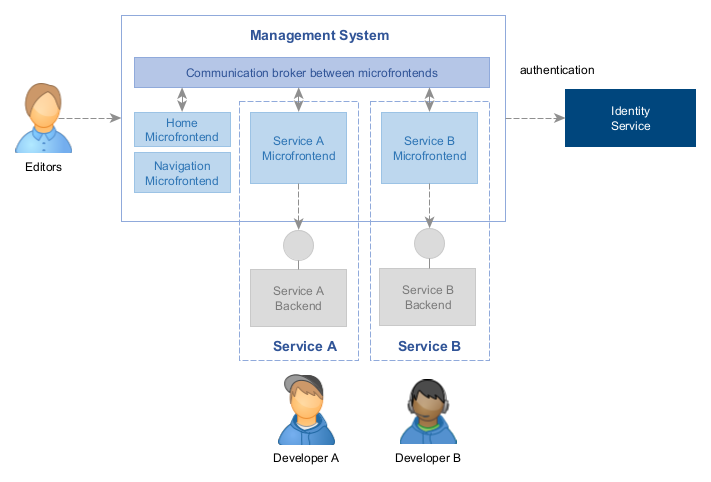
The Management System is distinct from the Admin Portal (https://portal.axinom.com). The Admin Portal is used for environment and tenant administration tasks (creating environments, managing billing, etc.). The Management System is used by content editors and is accessed via a separate URL with its own authentication flow.
Accessing the Management System
Each environment has its own Management System URL. The URL uses a subdomain that is configured per environment.
To find the URL for a specific environment:
- Log in to the Admin Portal
- Navigate to Environments and select your environment
- The URL is shown in the info panel on the right as Management System URL
In local development, the Management System is typically served at http://localhost:10053.
Login and Authentication
The Management System uses the OAuth 2.0 Authorization Code flow via the Mosaic Identity Service. Authentication is handled entirely by the Identity Service - the Management System shell never handles credentials directly.
The following identity providers are supported:
- Email and Password (AxAuth - Axinom's built-in provider)
- Axinom Portal (single sign-on via your Axinom account)
- Microsoft Entra ID (formerly Azure AD)
- Custom (any OIDC-compatible provider, e.g. Auth0)
Which providers are available on the login screen depends on what has been configured for the environment in the Admin Portal.
First-time login
When a user logs in for the first time, a management user account is automatically created but is set to inactive. A privileged user (e.g. an Administrator) must assign roles and activate the account before the new user can access the system. Email domain whitelisting can be configured to auto-activate users from trusted domains.
Homepage and Shell Structure
After logging in, users land on the dashboard - a tile-based homepage. Each enabled service that provides a UI contributes tiles to this dashboard. Tiles are permission-aware: if a user does not have access to a workflow, its tile is not displayed.
The shell provides a persistent navigation panel on the left side. It is docked open on the homepage and collapses behind a hamburger icon on detail pages. Navigation items are grouped into Workflows (content operations) and Settings (administrative tasks) by default. The Navigation panel is itself a platform-level microfrontend that is always present.
Other persistent shell elements include:
- Breadcrumb bar - shown at the top of every page, built automatically from registered page routes
- Toast notifications - non-blocking status messages that pilets can trigger independently of the current page
How Microfrontends Are Loaded
When a service is enabled for an environment, the following sequence occurs:
- The Identity Service sends an enable command to the service
- The service initializes itself for the environment
- If the service provides a UI, it publishes its microfrontend (pilet) via the Microfrontend Service
- The Microfrontend Service fires a publication event
- The Management System can now load the new pilet at runtime
Users who are already logged in when a new service is enabled need to log out and log back in to refresh their session token and see the new workflows.
The Microfrontend Service is one of three mandatory core services that the Management System depends on and that cannot be disabled:
| Service | Role |
|---|---|
| Microfrontend Service | Hosts and serves pilets to the Management System |
| Management System Service | Serves the shell application itself |
| Identity Service | Handles authentication and authorization |
Configuration
The subdomain of the Management System URL is configurable per environment. To change it, open the environment in the Admin Portal, locate the Microfrontend Service in the service list, and click its name to open the service settings.
Shell customization
Beyond the subdomain, the appearance of the shell can be customized from within a custom pilet using the @axinom/mosaic-portal API:
- Custom logo — register a custom SVG logo to replace the default shell logo
- Custom welcome message — override the landing page header title and subtitle
Additionally, the shell root element carries a CSS class in the format env-{environment-id} (e.g. env-900c8d55-31d4-43ba-a73a-3f2289a7b2cc), which can be used to scope custom styles to a specific environment — useful for visually distinguishing staging from production.
See also
- Microfrontends - how services contribute UI to the shell
- Authentication and Authorization - the OAuth 2.0 login flow in detail
- Identity and Access Management - user roles and permissions within the Management System
- Navigation Panel - the side navigation structure
- @axinom/mosaic-portal - developer reference for the Piral shell API